!!! Warning !!!
Once again, let me repeat, I'm by no means a developer nor a sysadmin (at least no more since 5 years).This means that, while the solution below worked for me and I could reproduce it, it's not 100% safe neither!
Also, my solution still feels incomplete (read further), so if someone know the tweak to make it even more compete, please share it and reach out in Twitter, I'll be waiting.
Introduction
By now, everyone following @jessfraz read her take about the very neat "little hack" from @cloudflare: Using Go as a scripting language in LinuxAs a good WSL Corsair, I tried it and it just worked!
But then, based on my latest playground of having a seamless coding experience between WSL and Windows (thanks @bketelsen for the love and notification spam), I really thought it would be unfair to "my Windows side" to not be able enjoying the fun of GO scripting (yes, split personality is bad).
So as the good Corsair I am, it was time to see if some shinny loot was waiting to be found.
Understanding Windows extensions
And, oh boy, there was this nice chest waiting to be open. Welcome to the Windows Registry treasure island!I knew what I was searching for, make a specific extension act as a script (./<filename.ext>), and then I came across something similar.
The vision was becoming clearer and further research brought me to this Microsoft doc.
To be totally sincere, I didn't understood it all, but then an idea came: there is already a "script" file type that I could base myself from.
Thank You Powershell!
Imitation is the purest form of flattery
Before I do any change, let's see the behavior when trying to run a "go script":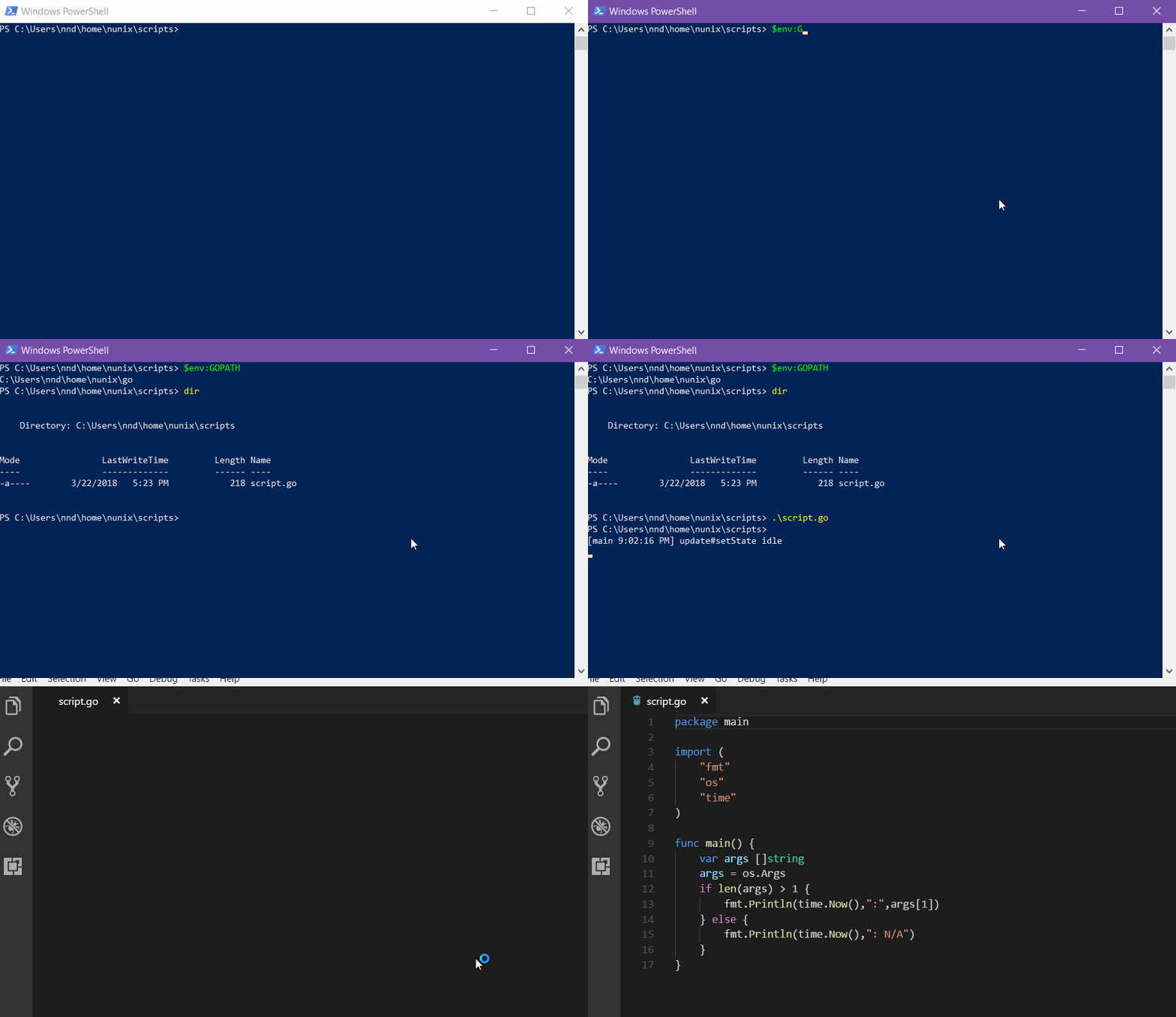
As I have VSCode installed, the fact that I launch a ".go" file it will open it.
So the next logic step was to "break" this relationship and make the ".go" file executable.
For that, after looking at the ".ps1" and the Microsoft article as a reference, I decided to give it a GO (yes, bad pun sorry).
Here are the steps to make the change in the Registry:
- Open the registry (duh)
- Go to: Computer\HKEY_CLASSES_ROOT\.go
- Change the value of "(Default)" to: "go"
- Add a new String value name "Content Type" with the value: "text/plain"

- Go to: Computer\HKEY_CLASSES_ROOT\.go\OpenWithProgids
- Delete any additional key other than "(Default)"
- Ensure "(Default)" has no value
- Create a new Key with the name "go": Computer\HKEY_CLASSES_ROOT\go
- Change the value of "(Default)" to: "0"
- Create a new Key with the name "0": Computer\HKEY_CLASSES_ROOT\go\0
- Create a new Key with the name "Command": Computer\HKEY_CLASSES_ROOT\go\0\Command
- Change the value of "(Default)" to: "C:\Windows\System32\WindowsPowerShell\v1.0\powershell.exe" "-Command" "go run '%1' %*"
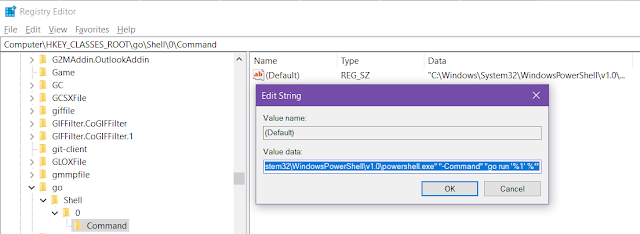

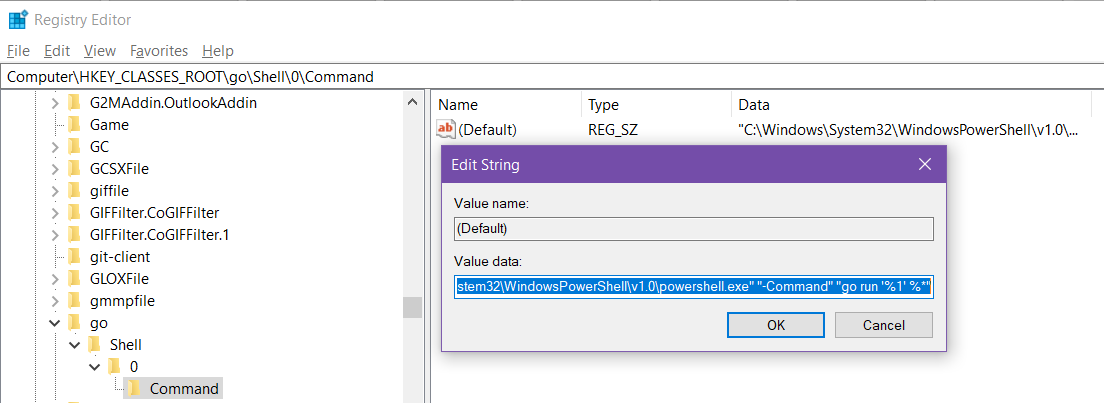
And, well that's it ...
Let's open a new Powershell console and try to run again the "go script" from before:


Feeling of imcompleteness
Right now, what I feel is really missing is to have the script displaying in the same Console window.
So if anyone know what should be changed to achieve this, please share it.
Conclusion
From my (hobbyist) point of view, this solution is almost cleaner as we call directly the "go" program instead of "gorun" for the Linux solution.
More importantly, and now I'm talking to you Brian: this also means that we could (eventually) call a versionable go application ... but this one I'll wait on your blog post.
Hope you will have as much fun as I did with this "go scripting"!
>>> Nunix Out <<<
Thank you for sharing wonderful information with us to get some idea about it.
ReplyDeleteDocker and Kubernetes Training
Kubernetes Online Training
Docker Online Training
Docker Training